
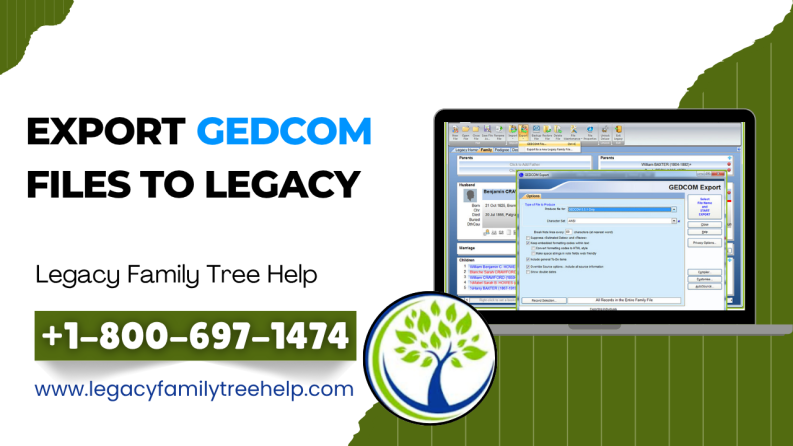
Are you trying to trying to Export GEDCOM Files to LEGACY? Well, if you’re trying to move data over from some other genealogy software, it usually means exporting a GEDCOM file first. After that, you bring that into Legacy, as that is the best standard way to get it done properly.
When you want to import data from another genealogy program. Most of the time, you need to export the data from the other program in the form of a GEDCOM file. After that, import the GEDCOM file into Legacy. (Once the GEDCOM file has been export from another program, importing the GEDCOM file into Legacy is quite straightforward. Simply click on File and choose Import From and then Use Import Wizard to assist with the import.) The following are the instructions to export GEDCOM files to legacy versions of some of the most popular genealogy programs:
Steps To Export GEDCOM Files From Other Programs To Legacy:
• Ancestral Quest Export (for Family File that has .aq Extension): Export GEDCOM FILES to LEGACY
- From the File menu, select Export, or click the Export button in the toolbar.
- The GEDCOM Export window appears.
- If using version 3.0 or earlier, select the Standard option by clicking the radio button. If using version 2002 or version 11, select Personal Ancestral File from the drop-down list.
- Select version 5.5 and the ANSEL character set.
- Check Regular Notes, Source Notes, Ctrl Notes, and Submitter.
- If LDS (Mormon), check LDS Data (this option is available if “Use LDS Data” has been checked in the “Tools – Preferences – General” screen).
- Optionally, select the box for Confidential Data (notes starting with a ~ and confidential events).
- Optionally, select the box for Full Info on Living. This will provide you with all the information for the people selected for export. Without this option, you will only receive relationship information and name information for people who qualify as living (people under 110 years old with no entry in the death date field).
- If you wish to export only part of the people in this file. Then select the Partial option and click on the SELECT button to open the Select Set of Individuals window. This is where you will indicate which people you wish to export.
- When you have completed making your selections, click on OK to export your file. A directory dialog will appear, allowing you to select a name and directory for your file. When you have selected a name and directory for your file, click on EXPORT, and the export will commence.
Brother’s Keeper
- Select GEDCOM, then Export from the File menu.
- Click on All people. The Name of GEDCOM file to create box appears.
- Enter a name for your GEDCOM file in the File name box.
- After that, select the drive and folder where you want to place your file in the Save in box.
- Click Save. The Export GEDCOM File box appears.
- Select the options you want to include or exclude. Select the Ansel character set.
- Click OK.
Cumberland Family Tree
- Select Import/Export, then GEDCOM Export from the File menu.
- In the General tab, click on the icon in the GEDCOM File box. Enter a name for your GEDCOM file in the File name box, and then select the drive and folder where you want to place your file in the Save in box.
- In the Options 1 tab of the GEDCOM Export box, accept all default settings.
- In the Options 2 tab of the GEDCOM Export box, select any options you want to use.
- Click the icon to create your GEDCOM file.
• Family Historian
The Family Historian program keeps all of your information in a GEDCOM format. This means that you don’t need to export a GEDCOM file in order to import it into Legacy. However, if you wish to create a GEDCOM file and give it a different name:
- Select Save as from the File menu.
- Enter a name for your GEDCOM file in the File name box.
- Select the drive and folder where you want to place your file in the Save in box.
- Click Save.
Family Matters
- From the File menu, select GEDCOM Import/Export.
- From the Data & Control tab of the GEDCOM Import/Export screen, click on the GEDCOM File button.
- Type in a name for your GEDCOM file in the File name box.
- Additionally, select the drive and folder where you wish your file to be place in the Look in box.
- Click on the Open button.
- From the Export Options tab, select Export Repositories, Export Source Data, Export Picture Data, and Export Notes.
- Click on the Export button. A second window will open. Click on OK.
• Family Tree Legends
- From the File menu, select Export to GEDCOM File.
- Type in a name for your GEDCOM file in the File name box.
- Select the drive and folder where you wish your file to be placed in the Save in box.
- Select Standard GEDCOM in the Export to box.
- Click on the Advanced button.
- Select the option “Combine multiple notes into a single note” and click OK.
- Click Save.
• Family Origins
- With the database that contains the information you wish to export open, select GEDCOM from the File menu and then select Export GEDCOM from the dropdown menu that is displayed.
- In the dialog box that is displayed, titled GEDCOM File to create, enter the path and name for the new GEDCOM file. After which, “GED” will automatically be added. Click Save or OK once you have entered the correct information in the box.
- Select “General” as the destination for the GEDCOM file that is being exported.
- Select whether you wish to export the entire database or only selected individuals by clicking on the radio button.
- Select the boxes that indicate that you wish to export notes, sources, addresses, and word wrapping in notes.
- Click now on the OK button to create the export file.
Family Tree Maker (pre-FTM 2008)
- First, select Copy/Export Family File from the File menu. If you are working with FTM, your version should be 11 or earlier. If your version is FTM 2005 or 2006, then you should select Export File > Entire File.
- Select GEDCOM from the Save as type dropdown list.
- Enter a name for your file in the File name field. The name should have a .GED extension.
- After that, choose the drive and location for your file in the Save in field.
- Now, click Save, and Family Tree Maker will open the Export to GEDCOM dialog box.
- Then, select your options from this dialog box as follows:
- Destination = FTW
- Version = 5.5
- Character set = ANSEL
- Additionally, select the box next to Abbreviate tags.
- Click OK, and your GEDCOM file will be created.
• Family Tree Maker 2008
- Click on the File menu.
- Click on the Export button.
- Select Output format as GEDCOM 5.5.
- Ensure that “Entire file” is selected.
- Click OK.
- Enter a name for your file, and then select where you want to save it on your hard drive. Click Save.
• Family Tree Maker 2009 and newer
- From the File menu, select Export.
- From the Individuals to export box, select Entire file.
- From the Output format box, select GEDCOM 5.5 (standard).
- Click on OK at the bottom of the window.
- Create a name for your GEDCOM file, and select where on your hard drive you wish it to be save.
- Click on Save, and your GEDCOM file will be created.
ALSO READ: Export FTM Into Legacy Family Tree
• Family Ties (Shareware)
This is an old genealogy program written for DOS. It cannot export GEDCOM files. However, there is a free utility that will export Family Ties data into GEDCOM format. It is available on-line at http://www.xmission.com/~famties/ft-ged.htm.
• GenBox Family History
- From the File menu, select Export Data, then Export Data to GEDCOM File. The GEDCOM Export Options window will appear.
- From the Key tab, select the two “All” options next to the Ancestral and Descendant labels in the Generations to go from the Key Individuals box.
- From the Options tab, select Legacy from the Intended receiving system list.
- From the Notes box, select Include embedded source citations with Value and code in the Field codes box.
- From the Notes box, select Break mid-word in the Continued lines box.
- Click on Make Export File.
Generations (earlier versions)
- Select “File” from the menu bar and then “GEDCOM File”. The “GEDCOM Export” dialog box will then appear.
- Note that the ‘default settings’ are accepted, however, you would need to change “Destination” to “Mark for Other”.
- Click “Export”. The “Save GEDCOM File” dialog box will then appear.
- Name your file and designate a drive for your file. Next, click “Export”.
• Generations (version 8)
- Select “Import/Export” from the “File” menu and then “Export GEDCOM”. The “GEDCOM Export” dialog box will then appear.
- Select “Include Sources”.
- The default “Destination” should be marked for “GEDCOM 5.5”. Leave this as it is.
- Set “GEDCOM Character Set” to “Ansel”.
- After that, Click “Export”. The “Save GEDCOM File” dialog box will then appear.
- Name your file and designate a drive for your file.
- Click “Save”.
• Mac Family Tree
- Select “Export” from the menu bar and then “Export GEDCOM File”.
- The export options need to be adjusted.
- You have these options available: “Export all Persons” or “Only export selected persons”. Note that in case “Only export selected persons” is activated, then “Select Persons” will also be available. Moreover, with “Select Persons”, you can easily open a menu to select persons for export. (If you need more information, kindly check the chapter “Selective GEDCOM export”.)
- “ANSEL” should be appropriate for Legacy.
- The line feed format of the device where you expect to open the file should be select.
- If you have issues with the current Mac FamilyTree date format in the exported file, you can choose the Date Format option “Convert to GEDCOM Standard”.
- Choose the media types to include in the exported GEDCOM folder.
- Click the Start GEDCOM Export button.
- Choose a place to save your file, then click Save.
• The Master Genealogist
- From the File menu, select Export. The Wizard dialog box appears.
- To go to step 2, click on Next to proceed.
- Ensure that the GGEDCOM option is selected in the Export file type box.
- Enter the desired file name for your GEDCOM file in the Export file name box.
- Click on the Locate button to select the drive and folder where you wish to place your file.
- Click on Next to proceed to Step 3.
- Click on the Next button to continue to Step 4.
- Select the radio button below the Current Focus Person option. It is the button with a list box with some kind of description in it.
- Select the All-people option.
- Click on the Next button to continue to Step 5.
- Select your desired options. The defaults are OK.
- Click Next to proceed to Step 6.
- Click Next to proceed to Step 7.
- Click Next to proceed to Step 8.
- Finally, click Finish to complete the process.
• My Family Tree Builder
- Select File, then Export GEDCOM.
- In the Export GEDCOM: Pick File window, go to Save as and type in the file name you’d like to give it. After that, the file will default to the name of the file that you are exporting. It’s up to you. You just need to ensure that you know where you saved it. Click Save.
- In the Pick File window, click Next/.
- In the Export GEDCOM: Personal Information window, add any description or comments you’d like to add. Click Next.
- In the Export GEDCOM: Pick Content window, choose what you’d like to export. Click Next.
- In the Export GEDCOM: Success window, click Finish.
• Relatively Yours II
- Select Family, then Export, then GEDCOM. The GEDCOM Export Wizard appears.
- Click Next.
- Select Personal Ancestral File (PAF) from the list of Destination Systems.
- Click on the … button at the end of the Output File Name box.
- In the File name box, you just need to type a name for the file.
- In the Save in box, type the drive and folder where you’d like to save your file.
- Click Save.
- Click Next and type your name and address if you’d like.
- Click Next and type any comments if you’d like.
- Click Next and then select the Format Addresses in structured form option.
- Click Next and then Finish.
• Reunion
- Open the file to export to a GEDCOM in Reunion.
- Click on the File > Import/Export or Export, depending on your version of Reunion.
- Click on GEDCOM File…
- Ensure that:
- Who is checked for all individuals?
- Also, the included sources are check
- Destination is checked to Other, if available
- GEDCOM Character Set is checked on Windows
- Click on the Export… button
- Determine a place to store your GEDCOM file so you can retrieve it again.
- Enter a file name in the space provided. An example of a file name would be MyData.ged
- Finally, Click on Save
• RootsMagic
- Open your database with the information you wish to export, then select Export GEDCOM File from the File menu.
- Select “General” as the destination of the GEDCOM file you are exporting.
- Choose whether you wish to export the entire database or only select individuals by selecting the radio button.
- Check the boxes for Note, Sources, Addresses, To-do tasks, Multimedia links, Correspondence Log, and Note formatting in the Information to export box.
- Click on Export. When the dialog box to select the GEDCOM file to create opens, you can specify the path and a new file name for your new GEDCOM file. After that, note that the .ged extension will be automatically added to your file name. Finally, click on Save once you have entered your new file name and chosen a place to store your new GEDCOM file.
Read also: RootsMagic
• Ultimate Family Tree
- From the File menu, choose Save As.
- Next, click on GEDCOM in the Save As File Type drop-down box.
- Then, enter the name of the file in the Name box with the extension.GED.
- After that, change the Drive and Directory to the location to which the GEDCOM file is to be sent.
- Now, Click OK. The Save As GEDCOM Options window appears with options that control the structure of the Ultimate Family Tree files that are saved in GEDCOM format.
- Additionally, the Grouping option allows you to export only part of your project to GEDCOM.
- Click on Family 5.5.
- Finally, if saving to a floppy disk and you wish to be sure the disk is blank before the GEDCOM file is copied to it, click on Erase Disk.
- Click on the OK option to start the export process.
Thus, in this manner, you will know how to easily export GEDCOM FILES to LEGACY in no time.
Conclusion
We trust that you find this content helpful and that you are able to export GEDCOM FILES to LEGACY efficiently. Nevertheless, you can always get in touch with us at Legacy Family Tree Help +1-800-697-1474. Additionally, you can also connect with our experts through live chat for quick support.