
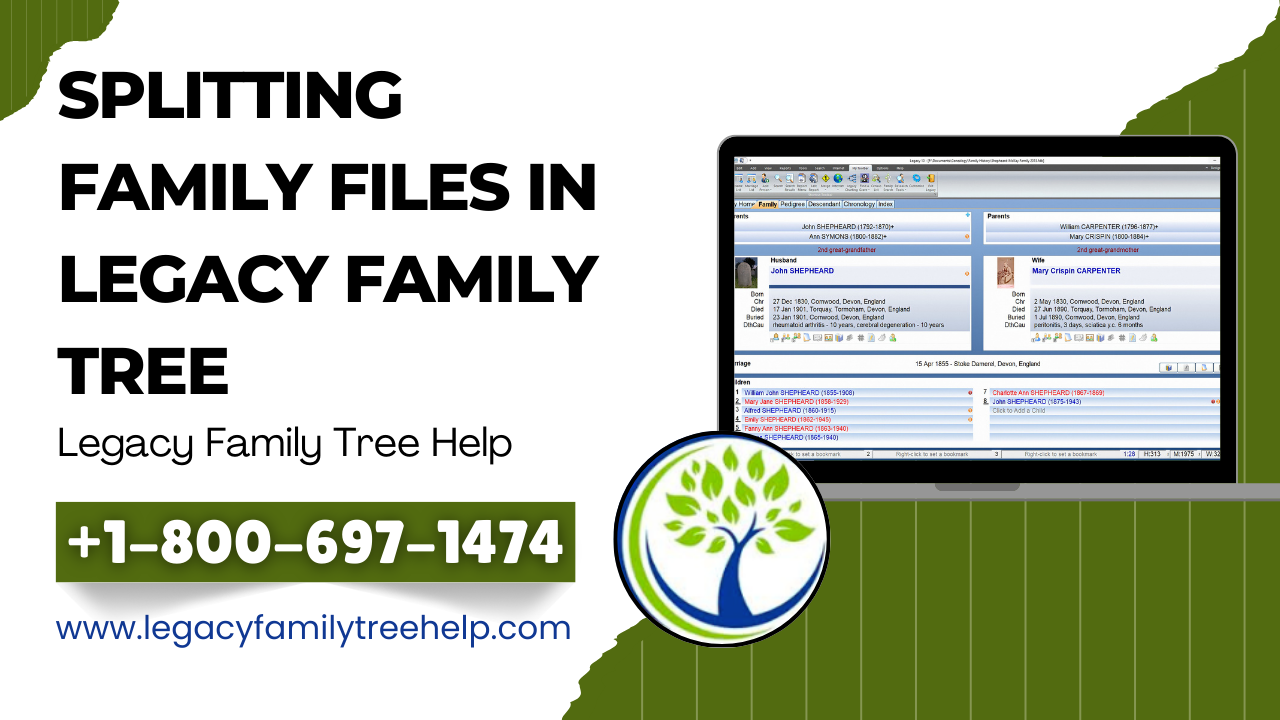
Many individuals prefer to store all of their records under one family file. This is possible with Legacy because its data storage capabilities are virtually unlimited. Well, when a file grows larger, it can become more challenging to use. As an example, a file containing over 100,000 records could be cumbersome to use. Even though Legacy can handle up to 2 billion records, it may be best to keep your family files smaller at an easier-to-manage size. So if you would like to learn about Splitting Family Files in Legacy, then you can do so by using the “Split Screen” view. This will help you break down a large database that is too big to work with easily.
You can break it down at the level of the grandparents or other points in the family tree so that you can organize your research. Share data through small, separate files without having to change your original database.
What Is Splitting Family Files In Legacy?
Dividing family records in Legacy Family Tree involves separating a bulky, difficult-to-handle database into smaller, easier-to-manage, and better-defined databases. Smaller databases may be created for organizing family records and/or for sharing specific relatives’ branches of the family tree with others. Additionally, if a database becomes too large, the paternal and maternal lines of the original database may be separated.
What Is Split Screen View In Legacy Family Tree?
Legacy Family Tree’s Split Screen View feature allows users to see multiple family or pedigree views at once; up to seven different trees can appear at once. Users can look at their family trees side by side and compare their different branches of a tree. With Split Screen View, it’s possible to find someone in either tree and easily drag that person into either family tree.
Deciding how many sections to split up a family tree database into smaller units is the first step in dividing the data. Ancestor Charts or Pedigree Charts can help choose where to split a File. If the Family File is large, split it first at the point on your line where it separates from your spouse’s line. Doing this creates two new Family Files. For a much larger Family File, you could further separate the File at your parents’ and your spouse’s Parents, for a total of four Family Files. If a Family File becomes very large, you could continue the splitting process at the Grandparent or Great Grandparent Levels, for a total of eight or sixteen Family Files, respectively.
NOTE: In order to follow along with the example provided, you need to have the most current version of Legacy. Many of the features that are mentioned below are new to the program. So to get the most out of them, you need to download the most recent Legacy update from their website www.LegacyFamilyTree.com.
Copying A Family Line From A Large Family File Into A New Family File
- Open the large family files in Legacy’s Family View.
- From the menu bar, click the View menu, then choose Split Screen from the View menu to display a second window on your screen.
- The two windows will now show side by side, and you will get a message box that asks if you want to open a different family file in the new window. Click the No button.
- Make sure the left window is current by clicking on the title bar of that window (for this example, you will be copying lines from your large file to your new file).
- From the File menu, select New Family File…
- Enter a name for the new family file and then click Save. When you create a new family file, the current family file will be empty with no names in the window on the left.
- In the right window (your large file), find and display the husband and wife that you want to be able to split from your family file before you add them to your new family file.
- Drag the name of the husband from the window on the right and drop that name into the blank name box for the husband that’s located on the left of the window. After completing this action, the Copy between Family Files window appears.
- Press down on the Family button to receive the window that shows the spouses of the husband.
- Press down on the All Spouses button.
For The Ancestor Options Box
- Next, press down on the Ancestors… button to receive the Ancestors Options box.
- Ensure the selections for the Direct Line Ancestors function as well as the three buttons directly beneath that function. To receive those particular individuals, and then press OK to complete.
- Now, press down on the large Start Copy button where all the selected family members and families are place within your large family file. A few moments later, you’ll now have your smaller family file separated into the left window.
- Continue with the same steps by performing steps three through two again, except this time using the wife’s name instead. In addition, if you are splitting your family file into several pieces, repeat these same steps as many times as needed for each family.
You have now successfully created two or more smaller family files that are easier to manage and process. Good Luck and Have Fun.
Conclusion
Once you follow the above steps accordingly, you should be able to complete Splitting Family Files in Legacy using Split Screen View without any hassle. Nevertheless, you can always feel free to contact our professionals anytime at the Legacy Family Tree Help number +1-800-697-1474 or use the Live chat for anything related.