If you’re looking forward to share a Legacy Family Tree file with another person, the easiest way to do so is to export your file as a GEDCOM file. Then give that file to the other person along with any media folders associated with the file. The other person can then import the GEDCOM file into their Legacy or other genealogy program and add or edit the information you have shared. There are also online tools available that allow you to create an online shared tree. Using Legacy’s tools or using Legacy’s exporting capability to create a separate Legacy file to share with another person.
Learn To Share Legacy Family Tree And Your Family File Via CD Or Thumb Drive:
Legacy Family Tree provides users with the Add-On option to copy their complete Legacy Family Tree Data and Family Tree Setup. Any family member who receives the CD or USB Thumb Drive can install the complete Legacy Family Tree Setup along with your Family Tree, Photos, sounds, and Videos.
It is recommend that you download the full setup program from our website and include the setup file on the CD or USB Thumb Drive. Once you have successfully downloaded the full setup program to your computer. You will need to rename the setup file to LegacySetup.exe before you burn it to the CD/USB Thumb Drive. We recommend you download and save the setup file from our website. This will minimize confusion for novice computer users. who may have trouble with Family Tree Compatibility and/or updating, if you provide the older setup file on the CD/USB Thumb Drive.
When you create your compilation CD, place the following four folders on your created CD: Family file, Photos/Music, Sound files, and Video files. The Legacy installation software will check for the presence of these four folders. To determine if the folders are present during the installation and will move any files that were located in these folders onto the computer of the end-user.
Use CD Burner Software To Prepare Files
Use the software that comes with your CD burner to copy your Legacy installation program and create the folders titled FamilyData and FamilyMedia. You do not need to create folders that will not contain either data or media files.
This will result in a CD that looks like this:
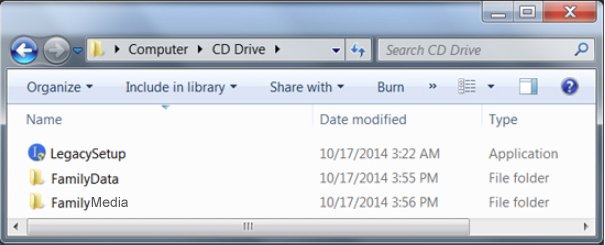
You would place a copy of your family file, for example, McGinnis.fdb or whatever the name, into the FamilyData folder. All of your pictures, documents, videos, and sound files would be copied into the FamilyMedia folder and so forth. Everyone you send a CD to would get copies.
All the files in the FamilyData folder will be installed in your Documents folder in the \\Legacy Family Tree\Data sub-directory on the user’s computer. All of the FamilyMedia will be installed in the Legacy Family Tree\\Media sub-directory. You only need both folders if you have attached media of any kind. If you don’t have any media files, then you don’t need to create a FamilyMedia folder on the CD.
Utilizing legacy folders streamlines the process for the recipients. The recipients receive a Legacy Folder on the CD right off the bat: no further ordering or downloading from us, all they need to do is install and run it. You are authorize to distribute the Legacy Family Tree Standard Edition this way. The installation process will copy all of the family records from the CD to the recipient’s computer without the need for any instructions on how to transfer these files. Legacy CDs also make excellent birthday and holiday gifts or great giveaways for family reunions!
Conclusion
We now hope that the above information has helped you share your Legacy Family Tree files without any difficulty. If you have any more queries, feel free to contact our Legacy Family Tree Help Number at +1-800-697-1474. Our professional techs 24/7 live chat will assist within no time with the most appropriate details further.