
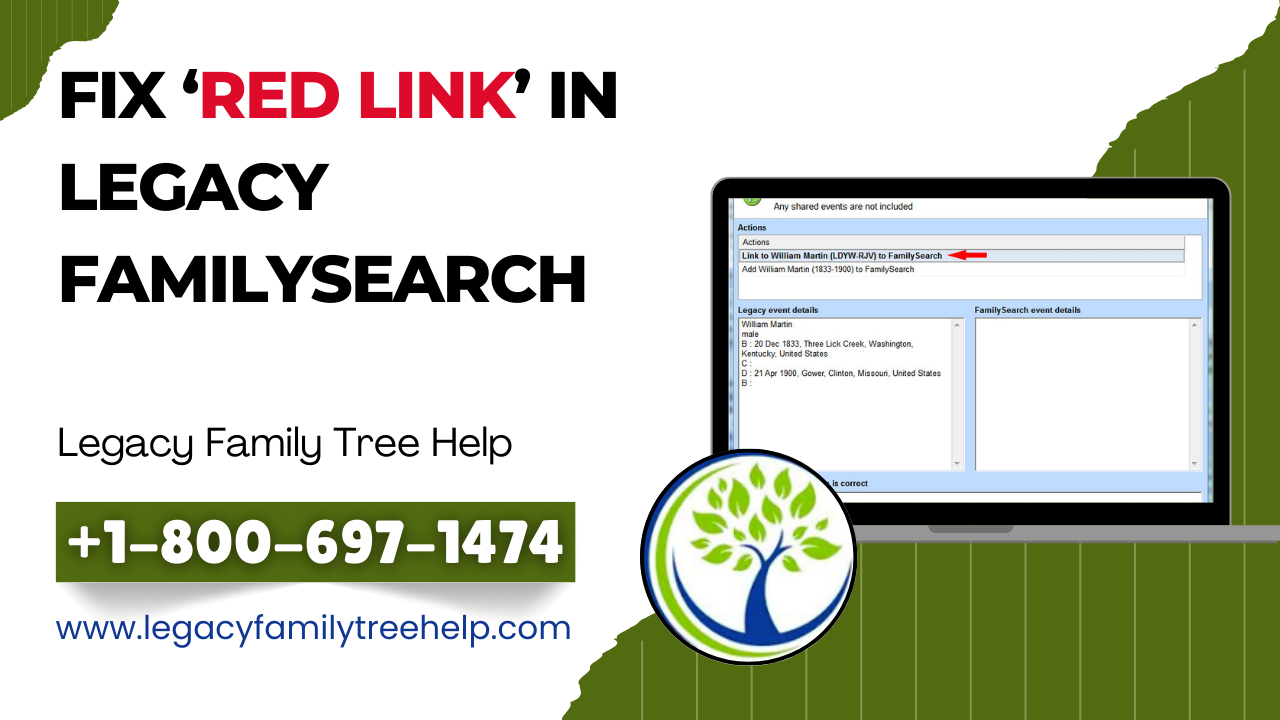
A red link or icon in Legacy Family Tree represents a sync error between Legacy and FamilySearch. In this case, the error means that the person you selected in Legacy has records that do not match what is stored on FamilySearch.
If you’d like to learn how to fix red links in Legacy FamilySearch, you’re in luck! This article will provide you with all the information you need in order to resolve your issues with red links appearing on people in Legacy FamilySearch.
Why Does A Red Link Appear On A Person In Legacy FamilySearch?
A red link appears on an individual in Legacy FamilySearch for the following reasons:
- The person that you are linked with in FamilySearch has duplicate records and/or family entries that will require merging.
- The individual has had a duplicate record merged with his/her record, which has changed his/her FamilySearch ID.
- You’re link to the wrong individual in FamilySearch.
- You’re trying to access somebody who is still living in FamilySearch and does not have the required permission.
The Following Are The Steps To Fix The ‘Red Link’ In Legacy FamilySearch:
- To refresh your Legacy from FamilySearch, you must first click the Refresh Button located at the top of the FamilySearch Person page. Then click the Reload Button, which will refresh your Legacy person from FamilySearch. Legacy FamilySearch can sometimes hold on to old data, so doing a refresh may be all you need to do to resolve your issue.
- Click on the red link.
- When prompted Do you wish to unlink this individual from Family Tree? Click Yes.
- You have unlinked the Legacy person; there is no longer a link to the Legacy person, nor will you see a FamilySearch ID associated with that individual.
- Click the button to the left of the Legacy person to bring up the Select an Action to Perform window. Confirm that “Link to [person’s name]” is highlighted at the top of the window, and click Select Action located in the lower right of the window.
- The Legacy person is now link to the Family Tree person. You will now see a blue link to the Legacy person along with the same FamilySearch ID as the Family Tree person.
FAQs:
A. Well, if you see a red indicator, it typically means your data is out of sync with FamilySearch Family Tree, or it is a “red flag” on the Family Tree between your Local file and FamilySearch.
A. There is no way a red link or a red highlight within the Legacy FamilySearch integration is going to delete or harm your data in your local Legacy software. A red link or red highlight indicates that a discrepancy has occurred either due to a difference between your local file and the online FamilySearch Family Tree or that there is a conflict between your FamilySearch Family Tree and your Legacy Family Tree.
A. Cleaning up your data, documenting changes to prevent re-adding the data by other family members, and using proper synchronization techniques are all necessary steps in avoiding red links (broken links, incorrect source attachments, or data error icons) from appearing when you sync your Legacy Family Tree to FamilySearch Family Tree. In the context of FamilySearch, red links typically refer to broken external sources (legacy NFS sources) or incorrectly attached records.
Conclusion
Once you follow the above instructions carefully, the red link showing on a person in Legacy FamilySearch should be fix effectively. Furthermore, if you would like any assistance regarding the same or anything related, you can directly call our Legacy Family Tree Help at +1-800-697-1474 or Live Chat. We provided the best tech support, and they will assist you in no time.